

AI Hairstyle Changer: Try On Hairstyles Before You Cut
See a new haircut on your own face before anyone picks up the scissors. Facelab's AI hairstyle changer puts women's and men's hairstyles on your photo and can add volume to flat hair. Try a few one after another, save the ones you like, and head to the salon knowing what to ask for. Included in Facelab Premium.
Drop your photo here
JPG, PNG, WEBP, HEIC · up to 25 MB
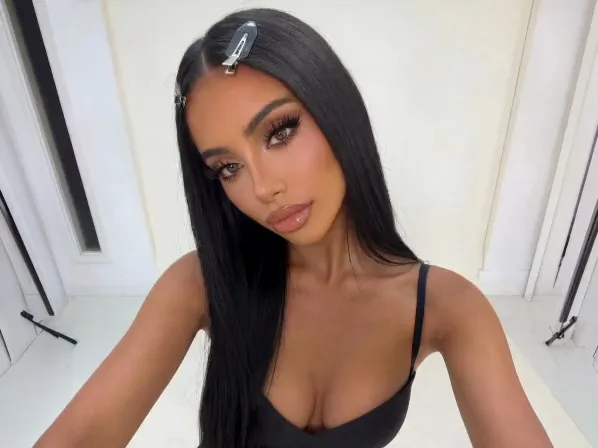
How it works

Step 1
Upload a Clear Portrait
A front-facing photo in even light works best. Make sure your hairline shows.

Step 2
Pick a Hairstyle
Tap a style on the Women or Men tab. It is tried on your photo right away and takes a moment to appear.

Step 3
Compare and Save
Use the compare button to see your original photo, try another style, and download the ones you like.
The first preview is rarely the one, so save anything you're even a little curious about.
Explore more Facelab tools
AI Make Up Editor
Apply virtual lipstick, eyeshadow, and blush instantly.
Open Tool →AI Hairstyle
Try any hairstyle and color — from subtle to bold.
Open Tool →Object Remover
Erase unwanted objects from photos with AI precision.
Open Tool →Background Remover
Remove any background in seconds with AI precision.
Open Tool →Watermark Remover
Erase watermarks and logos from any image instantly.
Open Tool →AI Teeth Whitening
Brighten your smile with realistic whitening in one tap.
Open Tool →Eye Color AI Editor
Change eye color naturally — any shade, any photo.
Open Tool →AI Image Upscaler
Enlarge photos up to 4× without losing quality.
Open Tool →Body Editor
Slim, reshape, or adjust body proportions with AI tools.
Open Tool →Skin Retouch
Smooth skin, reduce blemishes, perfect your complexion.
Open Tool →Face Shape Editor
Subtly reshape facial features with natural precision.
Open Tool →Resizing Image
Resize photos to any size without quality loss.
Open Tool →Photo Filters
Give any photo a ready-made color look.
Open Tool →Sky Replacement
Swap a dull sky for a sunset or storm clouds.
Open Tool →Background Blur
Blur the background like a portrait lens, or add bokeh.
Open Tool →Light Effects
Add light leaks, flares and a warm glow.
Open Tool →Photo Textures
Lay film grain, dust or paper over any photo.
Open Tool →Photo Color Correction
Fix exposure, color and tone with 16 dials.
Open Tool →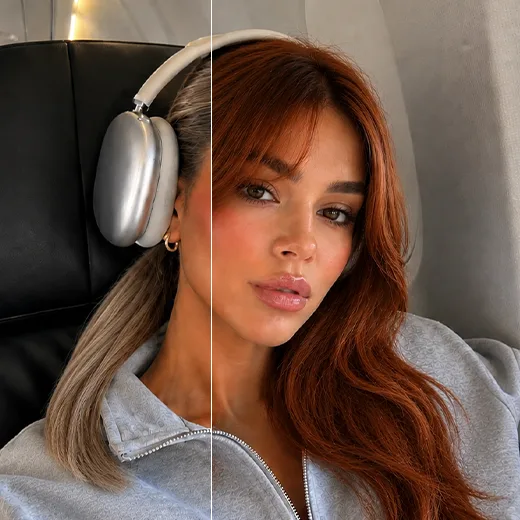
What Hairstyle Suits Me?
Usually the one that still looks good on your photo a day later, once the novelty has worn off. Face-shape charts are a decent place to start: round faces often suit length and height, and long faces tend to look more balanced with some width at the sides. A chart can't see your hairline or the glasses you wear every day, though. Put three very different cuts on the same photo and come back to them the next day. Whichever one you still like after sleeping on it is usually worth booking.
Add Volume to Flat Hair
Flat, fine hair is one of the most common reasons people want a change. The Voluminous style shows how a fuller shape would suit your face before you change anything. It also gives you something concrete to show your stylist: words like "fuller" and "lighter" mean something different to everyone, and a picture takes the guesswork out.
Try Men's Hairstyles on Your Own Photo
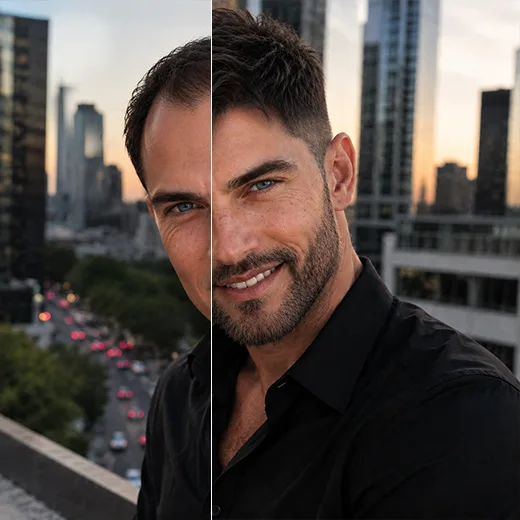
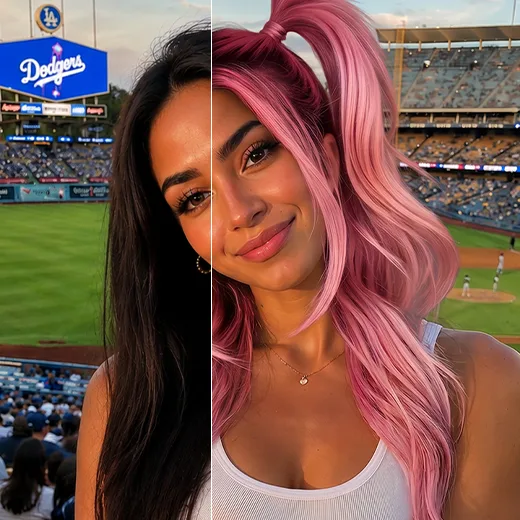
The Men tab has its own cuts, from Clean Buzz and Sharp Fade to Textured Fringe and Pompadour. Test something shorter and tidier, or find out whether growing your hair out would be worth the awkward in-between stage. Before a big change, show the preview to your barber and ask what your hair type allows.
Take the Preview to Your Stylist
A few saved images make the salon conversation much shorter. Bring two or three previews of the style you're leaning toward, a recent photo of your hair the way you normally wear it, one preview you've ruled out, and an honest idea of how long you'll spend styling it each morning. A preview on your own face is more useful than a celebrity photo, because your stylist can see how the cut sits with your hairline.
Know the Limits of a Haircut Filter
A haircut filter is good at showing shape and length. What it can't show is how your hair will behave once it's cut: thickness, curl, cowlicks, and how your hair grows at the crown all affect the result. Think of a long-hair preview as the result of several months of growing it out.
For a more believable preview, face the camera in soft daylight and keep your hairline visible; hats, sunglasses, and hands near your face get in the way. If warm indoor bulbs tinted your selfie, run it through Photo Color Correction first.
AI Hairstyle Changer: Frequently Asked Questions
How to try on hairstyles with Facelab, and what the hairstyle changer can and cannot do.
How do I try hairstyles on my face?
Upload a clear selfie and tap a style on the Women or Men tab: it is tried on your photo right away. The hairstyle tool opens in your browser, with nothing to install.
Can I try men's hairstyles?
Yes. The Men tab includes cuts such as Clean Buzz, Classic Crew, Sharp Fade, Textured Fringe, and Pompadour.
Can I change my hair color here?
No. Hair color is a separate tool, Hair Color, in Studio.
Can I see several hairstyles at once?
One result is shown at a time. Try styles one after another and download the ones you want to compare.
Does it pick a haircut for my face shape?
No. You choose the style, and the tool shows it on your photo. Trying a few very different cuts is the quickest way to find yours.
Can I try makeup with a new cut?
Yes, in the AI Makeup Editor. Try one change at a time so you can see what improved the photo.
Do I need a subscription?
Yes. The AI hairstyle changer is included in Facelab Premium.
Try Facelab Now!
Virtual makeup, skin retouching, and AI enhancement — free to try right now.