
Photo Textures: Add Film Grain, Dust, and Vintage Overlays
Facelab's Photo Textures tool lays 39 overlays, film grain, dust, paper, grunge, and vintage looks, over your photo right in the browser. Preview every texture in real time, blend it to taste, and export a print-ready image in seconds, no Photoshop layers or brushes needed.
Drop your photo here
JPG, PNG, WEBP
Explore more Facelab tools
AI Make Up Editor
Apply virtual lipstick, eyeshadow, and blush instantly.
Open Tool →AI Hairstyle
Try any hairstyle and color — from subtle to bold.
Open Tool →Object Remover
Erase unwanted objects from photos with AI precision.
Open Tool →Background Remover
Remove any background in seconds with AI precision.
Open Tool →Watermark Remover
Erase watermarks and logos from any image instantly.
Open Tool →AI Teeth Whitening
Brighten your smile with realistic whitening in one tap.
Open Tool →Eye Color AI Editor
Change eye color naturally — any shade, any photo.
Open Tool →Image Upscaler
Enlarge photos up to 4× without losing quality.
Open Tool →Body Editor
Slim, reshape, or adjust body proportions with AI tools.
Open Tool →Skin Retouch
Smooth skin, reduce blemishes, perfect your complexion.
Open Tool →Face Shape Editor
Subtly reshape facial features with natural precision.
Open Tool →Resizing Image
Resize photos to any size without quality loss.
Open Tool →Instagram AI Photo Editor
Edit photos for Instagram with one tap AI presets.
Open Tool →Sky Replacement
Swap a dull sky for a sunset, clouds or stars.
Open Tool →Background Blur
Blur the background like a portrait lens, or add bokeh.
Open Tool →Light Effects
Add light leaks, flares and a warm glow.
Open Tool →Photo Textures
Lay film grain, dust or paper over any photo.
Open Tool →Photo Color Correction
Fix exposure, color and tone with 17 dials.
Open Tool →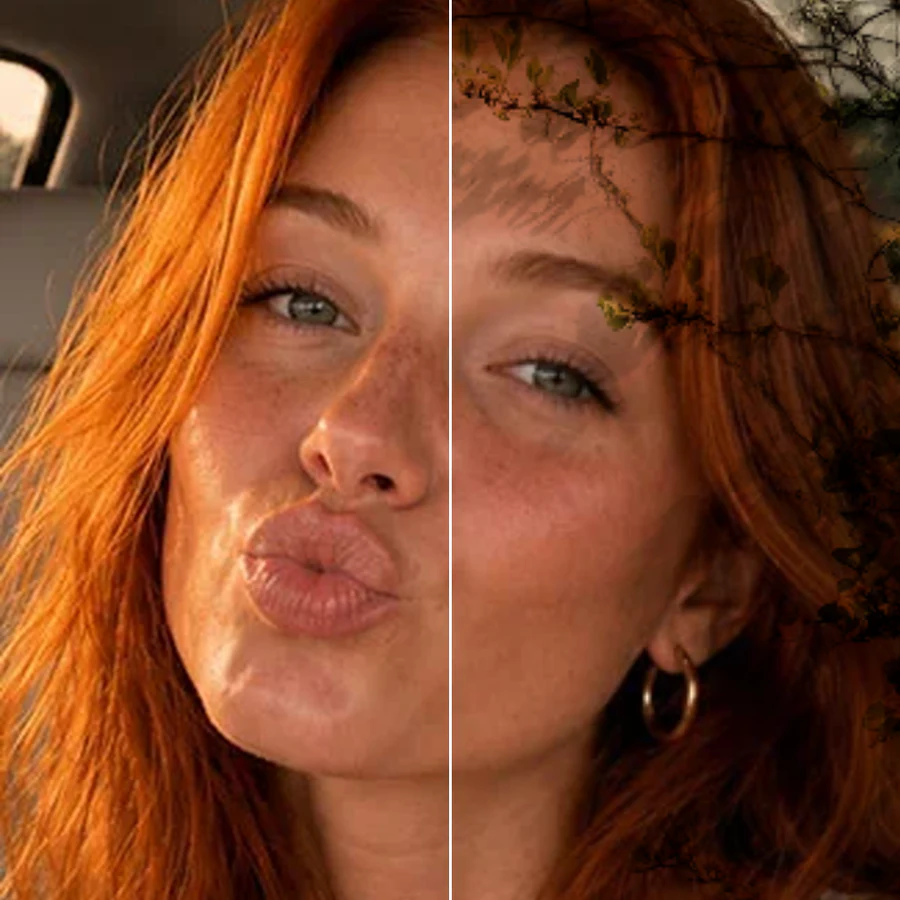
Recreate Real Film Grain on Any Digital Photo
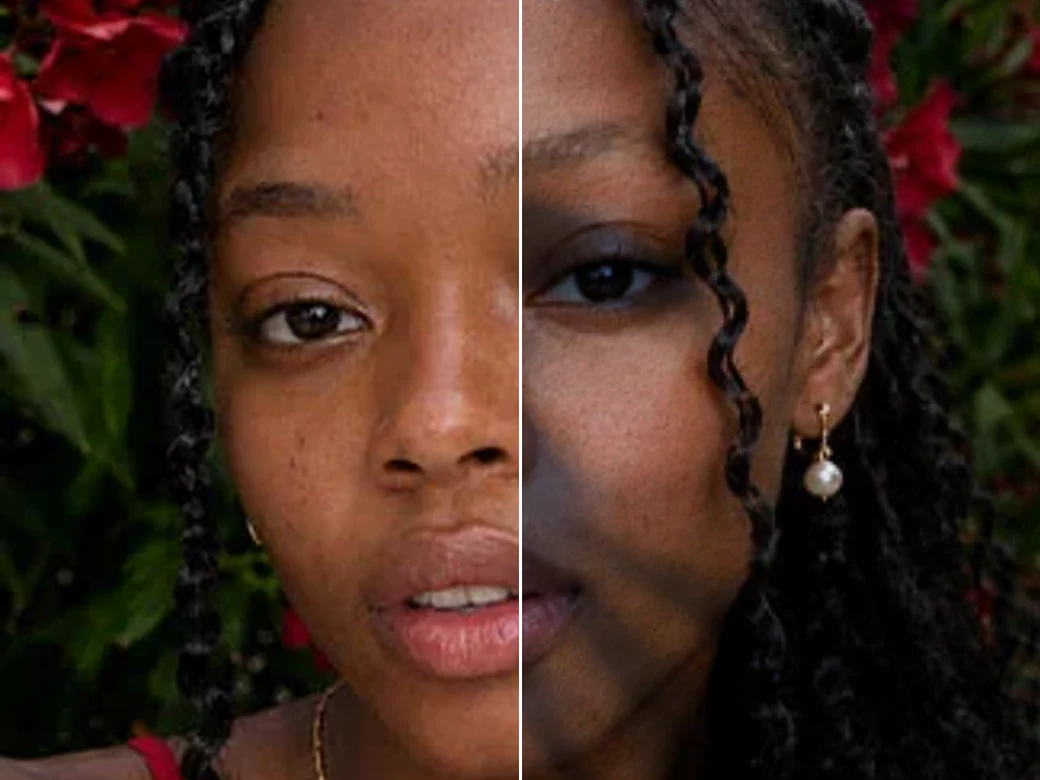
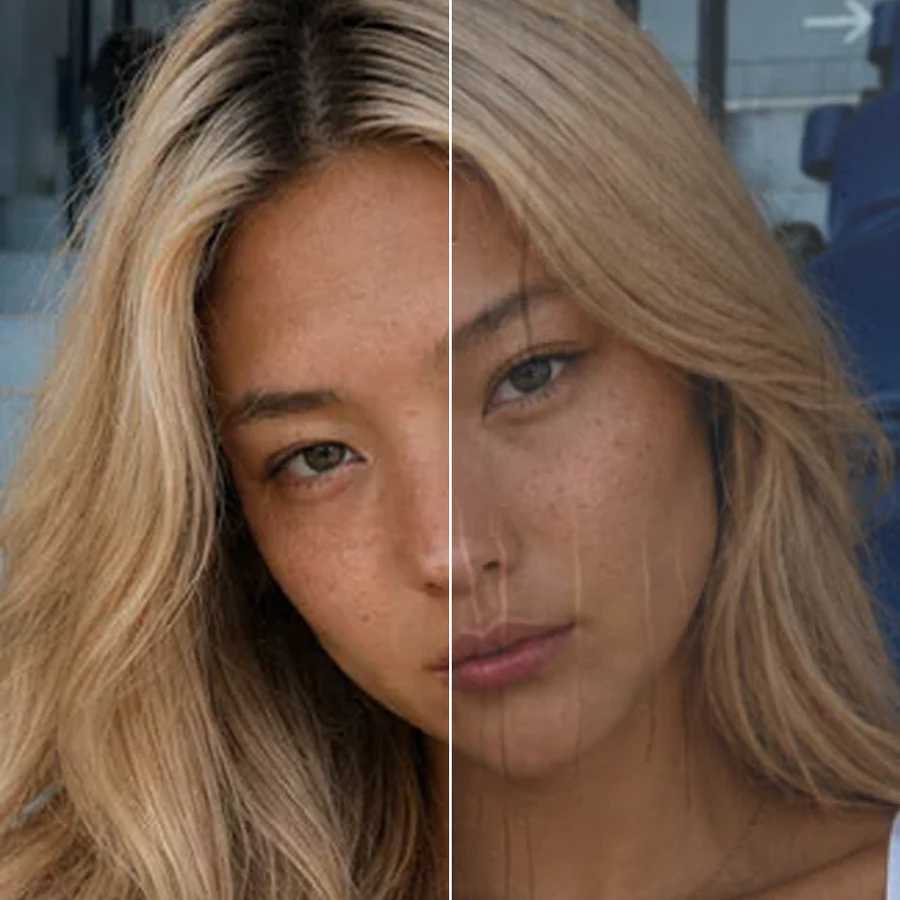
Digital photos often look too clean and flat next to a shot from real film. Facelab's grain overlays reproduce the fine, organic noise of 35mm and medium format stock, from a light grain to a heavier push, so a digital shot reads as analog without shooting a single roll.
Give a Photo a Worn, Vintage Feel with Dust and Scratches
Turn a clean modern photo into something that looks pulled from an old family album or a scratched print. Layer dust specks, hairs, light leaks, and faded color casts on top of any image to build a convincing aged look for retro themed posts, album art, or nostalgic edits.
Add Grunge and Paper Textures for Editorial and Print Work
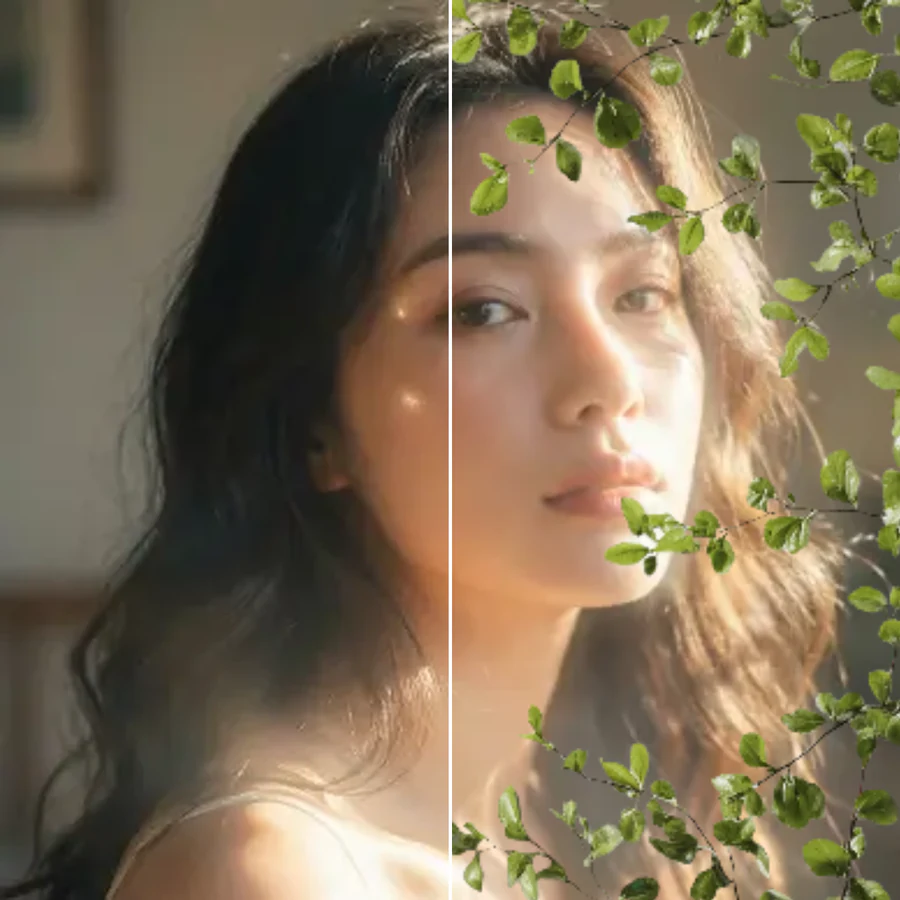
Moodboards, zines, and editorial layouts often need more texture than a plain photo can give. Overlay cracked paper, torn edges, ink stains, and grunge patterns to add depth and a handmade feel, ready for posters, lookbooks, or social graphics that need to stand out from a flat feed.
Preview 39 Overlays Instantly, Right in Your Browser
Cycle through the full set of film grain, dust, paper, grunge, and vintage overlays and see each one applied to your own photo instantly. Adjust the strength, compare a few looks side by side, and download the version you like, no software install and no waiting for renders.
What our users say
“I used to spend 20 minutes editing photos by hand. Now it takes 5 seconds. The results look more polished too.”
“Perfect for my e-commerce store. My listings look so much more professional now — and it's instant.”
“I tried every free tool out there. Facelab handles edge cases — hair, fine details — better than anything else.”
“I shoot products on my kitchen table. Facelab makes them look like a proper studio shot every time.”
“Used to outsource at $5 a photo. Now it's instant and free. The quality is identical — clients can't tell.”
“I edit photos for marketing assets in minutes. It completely changed how fast I can ship creative.”


Do more with the Facelab app
Get 25+ AI-powered editing tools, filters, and creative effects — free on iOS and Android.


Facelab Photo Textures: Frequently Asked Questions
Learn how to add film grain, dust, paper, grunge, and vintage overlays to your photos with Facelab. Read our FAQ to see how the Textures tool blends 39 overlays over your image right in the browser, with no Photoshop layers or design skills needed.
What kinds of texture overlays does Facelab offer?
Facelab includes 39 texture overlays covering five families: film grain, dust and scratches, paper and grunge, and vintage color casts. Each one is designed to sit naturally over a photo without hiding the image underneath, so you can pick a subtle grain for a quick touch up or a heavier grunge texture for a more dramatic edit.
Will a texture overlay hide the details in my photo?
No. Facelab blends every overlay at a level that adds texture without burying your subject. You can preview each overlay on your own photo before applying it, and fine tune the intensity so the grain, dust, or grunge effect sits on top of your image rather than replacing it.
Can I use these overlays for a vintage or retro photo effect?
Yes. The vintage and dust and scratches overlays are built to mimic the look of old film, faded prints, and aged paper. Combine a grain overlay with a light dust layer for a convincing retro effect, ideal for throwback posts, album covers, or nostalgic edits.
Do I need Photoshop or design skills to add textures to my photos?
Not at all. Facelab's Textures tool works entirely in your browser. Upload a photo, browse the 39 overlays, tap the one you want, and adjust its strength with a slider. There are no layers, brush settings, or blend modes to learn.
Are the texture overlays free to try?
Yes. You can try every film grain, dust, paper, grunge, and vintage overlay for free directly in the browser. No account or download is required to preview a texture on your photo.
Can I apply more than one texture overlay to the same photo?
Yes. You can layer multiple overlays, for example a film grain overlay with a dust overlay, to build a custom combined look. Preview each combination live and download the final result once you are happy with it.
Try Facelab Now!
Virtual makeup, skin retouching, and AI enhancement — free to try right now.
Free to download · No commitment required