

Photo Filters Online: Ready-to-Use Color Presets
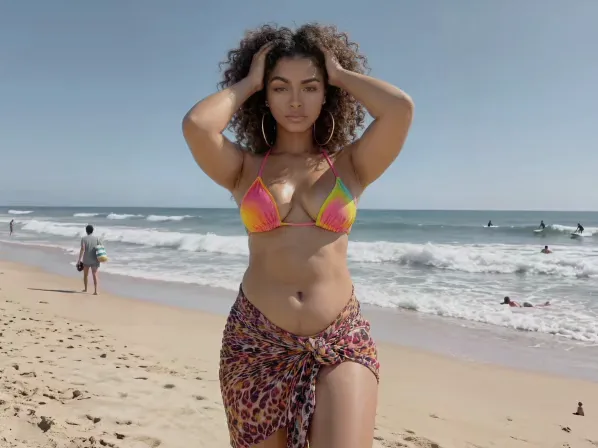
Add a filter to a photo and the whole mood changes. Facelab's online photo filters are ready-made color presets sorted into sets: Spring, Summer, Fall, Winter, Beach, Selfie, Pro, and Universal. Each one recolors the whole image at once: a flat afternoon shot warms up, and a beach photo gets back the blue you remember. Free to use in your browser; some presets are part of Web Plus.
Drop your photo here
JPG, PNG, WEBP, HEIC · up to 25 MB
How it works

Step 1
Upload Your Photo
A well-exposed shot works best. Presets build on the light that's already there.

Step 2
Open a Set
Start with the one that matches the season or setting, like Beach for water or Winter for snow.

Step 3
Fine-Tune and Download
Tap a few presets to see them on your photo. Soften the one you like with Opacity, Light, Contrast, or Warmth, press Apply filter, and download.
Don't stop at the first preset that looks fine. Your favorite is often the third or fourth one you try.
Explore more Facelab tools
AI Make Up Editor
Apply virtual lipstick, eyeshadow, and blush instantly.
Open Tool →AI Hairstyle
Try any hairstyle and color — from subtle to bold.
Open Tool →Object Remover
Erase unwanted objects from photos with AI precision.
Open Tool →Background Remover
Remove any background in seconds with AI precision.
Open Tool →Watermark Remover
Erase watermarks and logos from any image instantly.
Open Tool →AI Teeth Whitening
Brighten your smile with realistic whitening in one tap.
Open Tool →Eye Color AI Editor
Change eye color naturally — any shade, any photo.
Open Tool →AI Image Upscaler
Enlarge photos up to 4× without losing quality.
Open Tool →Body Editor
Slim, reshape, or adjust body proportions with AI tools.
Open Tool →Skin Retouch
Smooth skin, reduce blemishes, perfect your complexion.
Open Tool →Face Shape Editor
Subtly reshape facial features with natural precision.
Open Tool →Resizing Image
Resize photos to any size without quality loss.
Open Tool →Photo Filters
Give any photo a ready-made color look.
Open Tool →Sky Replacement
Swap a dull sky for a sunset or storm clouds.
Open Tool →Background Blur
Blur the background like a portrait lens, or add bokeh.
Open Tool →Light Effects
Add light leaks, flares and a warm glow.
Open Tool →Photo Textures
Lay film grain, dust or paper over any photo.
Open Tool →Photo Color Correction
Fix exposure, color and tone with 16 dials.
Open Tool →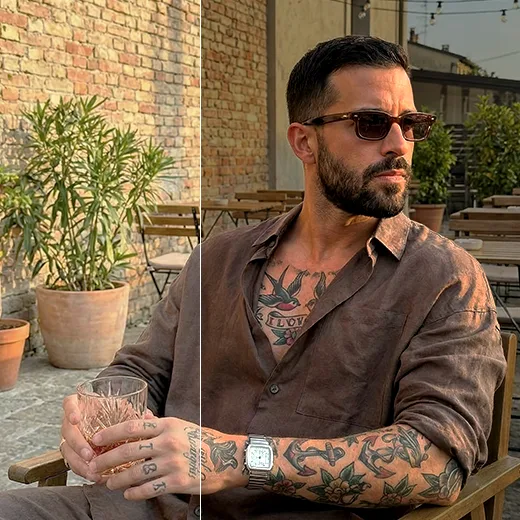
Photo Presets in Seasonal and Themed Sets
Each set is named after the kind of photo it suits. Spring for blossoms and outdoor portraits in soft daylight. Summer for bright, sunny scenes. Beach for sand, sea, and pool shots where blues matter. Fall for foliage and cozy interiors. Winter for snow, frost, and holiday lights. Selfie for close-ups and portraits. Pro for a polished, editorial finish. Universal as a safe first pick for any photo. Match the set to the scene, and the choice shrinks to a handful of presets that already suit your photo.
Skip the Slider Work with Ready-to-Use Photo Filters
Grading color by hand means juggling temperature, tint, contrast, and saturation. Change one and the others look different. A preset bundles those choices into a single, tested combination. Presets help with consistency too: use one preset across a photo dump, a product lineup, or a week of posts, and your feed looks planned.
Watch the Skin Tones
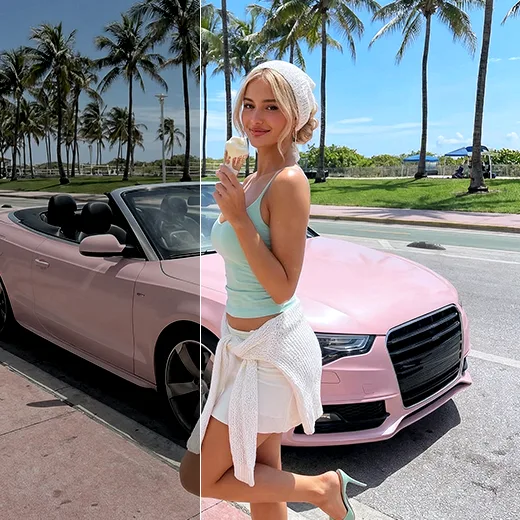
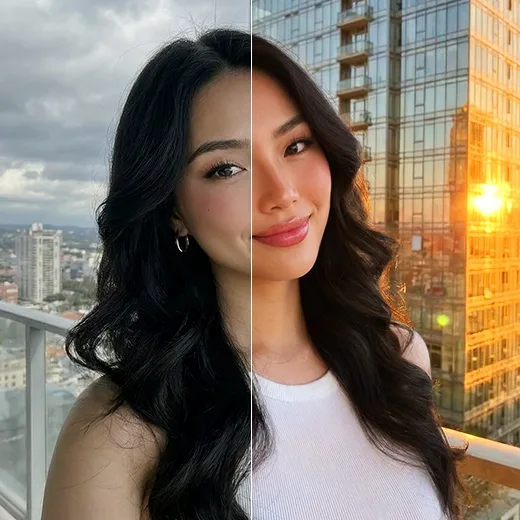
Faces give away a strong preset before anything else does. Warm looks can turn skin orange; cool ones can make it gray. Look at the face at full size after each preset, and start portraits in the Selfie or Universal sets. If the skin stops looking like yours, the preset is wrong for that photo. And if the skin itself needs work, smooth it with Skin Retouch before adding any color.
Match the Preset to the Original Light
A preset works with the photo's light. It can't invent sunshine. Put a sunny look on a dim indoor shot, and you mostly boost the grain and the odd color casts. Start from a set that matches the light you shot in. Underexposed photos need light before they need color.
Stop Before the Preset Takes Over
Crushed blacks, neon skies, and thick vignettes make a photo read as edited before anyone sees what's in it. Before you download, look at anything white in the frame, like a shirt or the clouds. If the whites have gone yellow or pink, lower Opacity or pick a softer preset; if the photo feels too warm or too cold, adjust Warmth.
Then look at the original one more time. Keep the version that still looks like the day you remember.
Photo Filters: Frequently Asked Questions
How to add filters to your photos with Facelab, and how to fine-tune a preset.
How do I add a filter to a photo?
Upload a photo, open a set, and tap a preset to see it on your photo. Adjust it if you like, press Apply filter, and download.
Are the photo filters free?
Yes, photo filters are free to use in your browser. Some presets are part of Web Plus.
Can I make a filter weaker?
Yes. Lower Opacity to soften the preset. Light, Contrast, and Warmth fine-tune it further.
Can I edit several photos at once?
No. Photos open one at a time. To keep an album consistent, apply a preset from the same set to each photo.
Do the filters retouch skin or change the background?
No. A preset recolors the whole photo. For skin, use Skin Retouch. To crop for Instagram, use Resizing Image.
In what order should I edit?
Apply the preset last, after retouching and makeup in the AI Makeup Editor, so the color sits on the finished photo.
Can I keep editing after applying a filter?
Yes. Download the result, or press Open in Studio to continue with other tools.
Try Facelab Now!
Virtual makeup, skin retouching, and AI enhancement — free to try right now.