

Body Reshape Photo Editor: Freehand Control Anywhere in the Frame
Guide the edit with your own strokes instead of a preset slider. Facelab's reshape tool gives you five brushes you can use anywhere on the image, whether that's a waistline widened by a wide-angle lens or a sleeve that bunched up mid-step. Everything runs in the browser, and a typical adjustment takes a couple of minutes.
Drop your photo here
JPG, PNG, WEBP, HEIC · up to 25 MB

Automatic body editors look for a standard figure, then offer a slider for the waist or legs. Sit down, wear a coat, or stand in a group, and the detection gives up. Facelab's reshape tool doesn't depend on finding a face or a body. The image moves wherever you paint.
How to Reshape a Photo Online

Step 1
Upload the Photo
The tool takes JPG, PNG, and WEBP images up to 20 MB.

Step 2
Freeze the Edges
Cover nearby straight lines and edges with Freeze so they stay fixed.

Step 3
Work in Short Strokes
Apply Move, Grow, or Shrink in small passes. Several light strokes hold up better than one long drag.

Step 4
Restore, Then Save
Pull back any spot that went too far with Restore, then download.
The shaping brushes are the exciting part, so Freeze is easy to forget. Locking the edges first is the step that decides whether the edit looks real.
Explore more Facelab tools
AI Make Up Editor
Apply virtual lipstick, eyeshadow, and blush instantly.
Open Tool →AI Hairstyle
Try any hairstyle and color — from subtle to bold.
Open Tool →Object Remover
Erase unwanted objects from photos with AI precision.
Open Tool →Background Remover
Remove any background in seconds with AI precision.
Open Tool →Watermark Remover
Erase watermarks and logos from any image instantly.
Open Tool →AI Teeth Whitening
Brighten your smile with realistic whitening in one tap.
Open Tool →Eye Color AI Editor
Change eye color naturally — any shade, any photo.
Open Tool →AI Image Upscaler
Enlarge photos up to 4× without losing quality.
Open Tool →Body Editor
Slim, reshape, or adjust body proportions with AI tools.
Open Tool →Skin Retouch
Smooth skin, reduce blemishes, perfect your complexion.
Open Tool →Face Shape Editor
Subtly reshape facial features with natural precision.
Open Tool →Resizing Image
Resize photos to any size without quality loss.
Open Tool →Photo Filters
Give any photo a ready-made color look.
Open Tool →Sky Replacement
Swap a dull sky for a sunset or storm clouds.
Open Tool →Background Blur
Blur the background like a portrait lens, or add bokeh.
Open Tool →Light Effects
Add light leaks, flares and a warm glow.
Open Tool →Photo Textures
Lay film grain, dust or paper over any photo.
Open Tool →Photo Color Correction
Fix exposure, color and tone with 16 dials.
Open Tool →Five Brushes, Full Control
Here's what each brush does:
- Move: pushes the image in the direction of your stroke
- Grow: expands the area under the brush
- Shrink: contracts the area under the brush
- Restore: returns one spot to its original state, leaving the rest of your edit in place
- Freeze: locks an area so nearby edits can't pull it out of shape and also Unfreeze
Three brushes make the changes, and two keep them in check. Freeze and Restore are what stop a careful edit from turning obvious. You get the kind of control found in pro editing software, minus the steep learning curve.
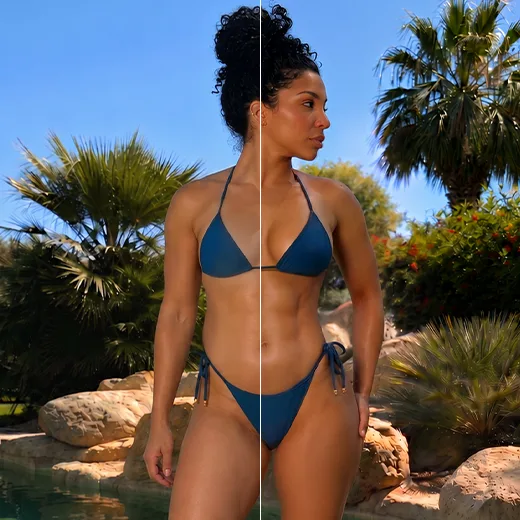
A Body Editor Online, Free to Try, for Any Pose
Detection-based tools are trained mostly on one person standing straight and facing the camera. Freehand brushes skip detection entirely. Sitting, leaning, bulky layers, and crowded group shots are all fair game. The same brushes handle clothing too, like a jacket that rode up at the waist, a twisted strap, or a crooked hem. Group photos get easier as well. You can straighten your own sleeve or posture and leave everyone standing next to you exactly as the camera caught them.
A Slim Photo Editor Online That Undoes Lens Distortion
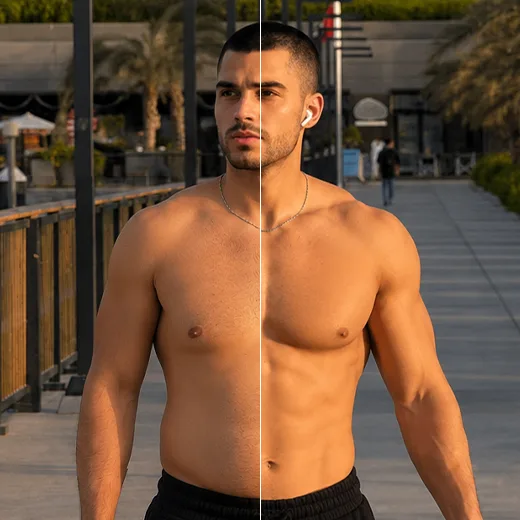
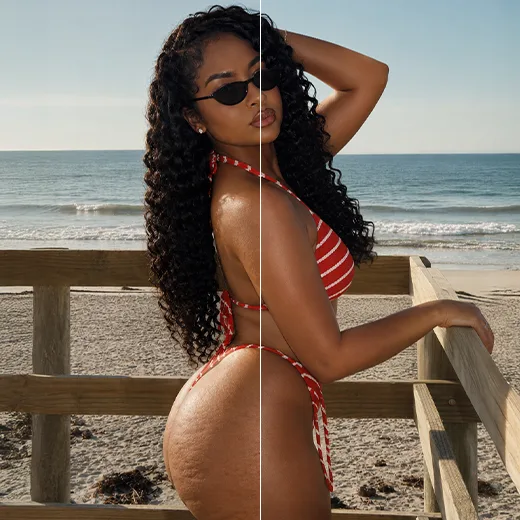
Phone lenses exaggerate whatever is close to them or near the edge of the frame. At the edge of a group photo, a wide-angle lens stretches you sideways. At arm's length, whatever sits closest to the camera looks larger than life. Used this way, a slim photo editor online corrects the camera rather than the person. A few careful passes with Shrink bring your proportions back to what you see in the mirror. Grow works the other way, restoring shoulders or arms that a high angle shrank. The goal is the body you actually saw that day.
Move, Grow or Shrink?
Each active brush solves a different problem. Move shifts an outline along your stroke without adding or removing anything, which suits a shoulder line, a collar, or an uneven hem. Grow and Shrink scale everything under the brush, which suits something that simply looks too big or too small in the frame. Many edits need just one of the three. Mix them up, and the result looks slightly off, no matter how careful each stroke was. Correct the outline with Move and the proportion with Grow or Shrink.
Pass the Straight Line Test
A weak reshape edit nearly always shows itself in the background. Door frames, tile lines, window edges, railings, and horizons are the reference points viewers use to judge a photo. If one bends beside the person, people sense it even when they can't say what's wrong. The Freeze brush exists for exactly this. Lock the line, then work next to it. Before downloading, look past the subject and trace each straight edge across the frame. If every line is still straight, the edit will pass.
Reshape a Photo Online, Free to Try
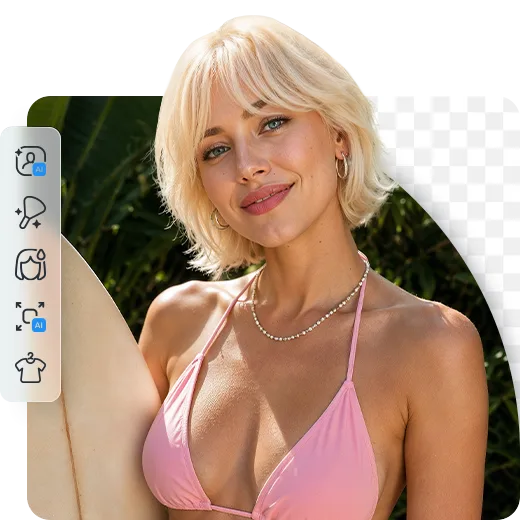
Most reshaping jobs involve one photo you care about, like a vacation shot or an event picture. Installing a full editor for that makes little sense. Open the tool in a browser on your phone or laptop, and it's ready to use.
Finish Your Photo with Other Facelab Tools
Reshaping handles geometry, but most photos need a bit more. The Face Shape Editor handles adjustments to facial features. Try a different outfit in the Clothes AI Editor, and if the crop is too tight, the Photo Expander adds space around you. A wider frame or a better outfit can do as much for a photo as reshaping itself.
Facelab AI Body Editor: Frequently Asked Questions
Discover how to sculpt your ideal silhouette effortlessly with Facelab. Read our FAQ to learn how our advanced body editing AI app helps you adjust proportions, smooth skin, and enhance muscle definition with natural, undetectable results without warping your photos.
How does this app that edits body features prevent the background from warping?
Unlike a basic body changer photo editor that distorts the surrounding image, our app uses advanced AI to ensure every adjustment respects the photo's physics. When you use the app to reshape body contours, it naturally keeps the background straight and makes your edits completely undetectable.
Can I use the edit-your-body app to change my height or proportions?
Yes! Facelab gives you complete control over your proportions. You can seamlessly lengthen your legs, redefine your shoulders, head, and neck, adjust your waistline, and enhance your curves for a perfectly balanced aesthetic.
Does the AI body enhancer use fake overlays for muscle definition?
No, our AI Muscles tool does not just paste fake overlays. As a true AI body enhancer, it understands human anatomy and analyzes light and shadow to place realistic muscle definition exactly where it belongs on your abs, arms, back, and legs.
Can I use this as an app to enhance body parts by smoothing my skin?
Absolutely. Facelab is a comprehensive body-enhancing app equipped with an Even Skin tool. It helps you refine texture by smoothing out imperfections like cellulite, minor blemishes, and uneven textures, creating a polished and authentic look.
Is there a way to add a tan using the body editing AI app?
Yes! Our app features a dedicated Tan tool that allows you to instantly adjust your skin tone. You can easily add a natural-looking, sun-kissed glow to your body regardless of the season, enhancing your overall radiance with just one tap.
How does the Facelab Body Editor reshape the body without warping the background?
Facelab's AI Body Editor utilizes advanced subject segmentation technology. Before any reshaping occurs, the AI separates the person from the background layer. This ensures that when you slim your waist or enhance curves, the walls, doorframes, and horizon lines behind you remain perfectly straight, avoiding the tell-tale signs of photo editing.
Can I add realistic muscle definition or abs using Facelab?
Yes, the Facelab AI Muscle Enhancer is designed to add realistic definition. Instead of pasting fake stickers, Facelab's generative AI analyzes the lighting and shadows of your original photo to contour your existing skin. You can subtly define abs, chest, or arm muscles that match your body type and skin tone naturally.
How does the Leg Lengthening tool keep body proportions looking natural?
The Facelab Height Correction tool uses a 'smart stretch' algorithm. It identifies the waist, knees, and ankles to elongate the legs specifically in the thigh and shin areas, rather than stretching the whole image. This maintains the structural integrity of the torso and head size, making you look naturally taller rather than 'stretched'.
Can Facelab give me a tan without changing the color of my clothes?
Absolutely. Facelab's Skin Tone mapping technology isolates skin pixels from clothing, hair, and backgrounds. You can use the Tan tool to adjust the melanin levels—from a subtle glow to a deep bronze—applying the color grade only to your skin while keeping your white shirt or colorful dress perfectly untouched.
Is the Body Editor capable of removing cellulite or stretch marks?
Yes, Facelab includes a specialized Even Skin tool for the body. Unlike simple blurring, which looks fake, our AI detects textural irregularities like cellulite or stretch marks and replaces them with smooth skin texture taken from surrounding areas. This retains the natural look of skin (pores and lighting) while removing the unwanted texture.
Try Facelab Now!
Virtual makeup, skin retouching, and AI enhancement — free to try right now.