

Eye Color Changer Online: 22 Iris Shades from Natural to Bold
Find out how you'd look with a different eye color in a few seconds. Facelab's eye color changer online detects the iris and recolors only that area, leaving your pupils dark, the whites clean, and the catchlight in place. Choose from 22 shades in two sets, all in your browser.
Drop your photo here
JPG, PNG, WEBP, HEIC · up to 25 MB
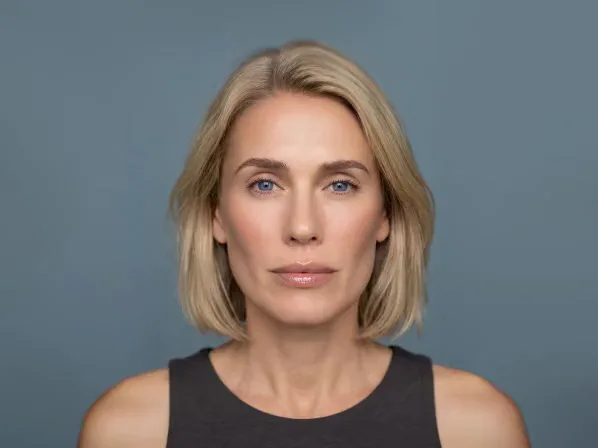
This AI eye color changer works on any portrait. People use it to preview colored contacts, restore eye color muted by indoor light, or create something clearly unreal for a costume shoot. Upload a photo and the new color shows up on your own face.
How to Change Eye Color in a Photo

Step 1
Upload a Close Portrait
Sharp, well-lit close-ups give the best results. Supported formats are JPG, PNG, and WEBP, with a 20 MB limit.

Step 2
Pick Natural or Bright, Then a Shade
Natural keeps things believable, and Bright goes bold. Tap a shade to recolor the iris.

Step 3
Zoom In, Then Download
Check the eyes at full size before you save or keep editing.
Eye edits that look clean in a thumbnail can break down at full resolution. Checking the result up close keeps you from posting an edit that falls apart on a bigger screen.
Explore more Facelab tools
AI Make Up Editor
Apply virtual lipstick, eyeshadow, and blush instantly.
Open Tool →AI Hairstyle
Try any hairstyle and color — from subtle to bold.
Open Tool →Object Remover
Erase unwanted objects from photos with AI precision.
Open Tool →Background Remover
Remove any background in seconds with AI precision.
Open Tool →Watermark Remover
Erase watermarks and logos from any image instantly.
Open Tool →AI Teeth Whitening
Brighten your smile with realistic whitening in one tap.
Open Tool →Eye Color AI Editor
Change eye color naturally — any shade, any photo.
Open Tool →AI Image Upscaler
Enlarge photos up to 4× without losing quality.
Open Tool →Body Editor
Slim, reshape, or adjust body proportions with AI tools.
Open Tool →Skin Retouch
Smooth skin, reduce blemishes, perfect your complexion.
Open Tool →Face Shape Editor
Subtly reshape facial features with natural precision.
Open Tool →Resizing Image
Resize photos to any size without quality loss.
Open Tool →Photo Filters
Give any photo a ready-made color look.
Open Tool →Sky Replacement
Swap a dull sky for a sunset or storm clouds.
Open Tool →Background Blur
Blur the background like a portrait lens, or add bokeh.
Open Tool →Light Effects
Add light leaks, flares and a warm glow.
Open Tool →Photo Textures
Lay film grain, dust or paper over any photo.
Open Tool →Photo Color Correction
Fix exposure, color and tone with 16 dials.
Open Tool →22 Shades in Two Sets
Two sets of 11 cover two very different goals:
- Natural: 11 shades that could pass as your own eye color
- Bright: 11 vivid shades made to be noticed
Reach for Natural when you're previewing contacts or gently correcting a portrait shot in poor light. Bright goes beyond what a real iris can do, which suits cosplay, Halloween, themed shoots, and content meant to look unreal. Deciding between realism and effect is the first choice.
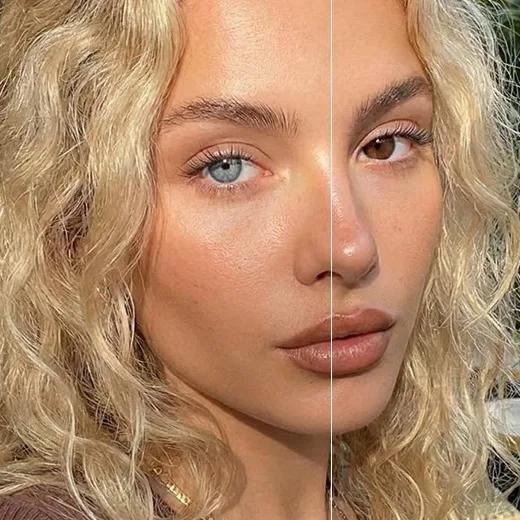
A Colored Contacts Simulator Before You Buy
Colored lenses cost real money, and the packaging shows them on a stranger's eye, next to a stranger's skin and hair. A virtual contact lens try-on shows the color on your face instead. A short preview can keep you from buying a pair that suits the model and not you. Compare a subtle shade with a bolder one on the same photo. The line between "enhanced" and "costume" is much easier to judge on your face than on a product page. Colored contacts count as medical devices even when they're purely cosmetic. Pick your color with the preview, then have an eye care professional fit the lenses.
Why Most Eye Color Edits Look Fake
Bad eye edits usually fail in one of three ways, all caused by recoloring too much. A colored pupil is the first giveaway, since real pupils are always dark. Tinted whites are the second, and a painted-over catchlight that leaves the eye looking flat is the third. Facelab leaves the pupil and catchlight alone. Limiting the change to the iris keeps the eye looking alive. The eye still catches the light in the photo the same way the rest of your face does.
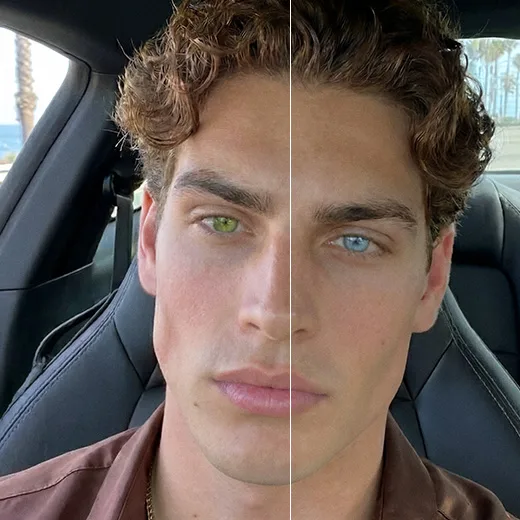
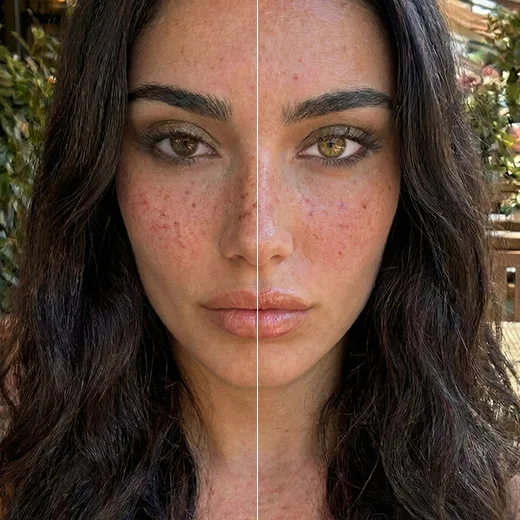
Match the Shade to Your Skin and Hair
Eye color is always seen in context, next to your skin and hair. Cool skin with ash or platinum hair tends to suit blues and grays. Warm skin with golden or red hair sits comfortably with greens, hazels, and amber. Try this after applying a shade: look at the whole photo, not just the eyes. When the irises grab your attention and hold it, the color is working against the image. A convincing color registers after the face does. Very dark hair is the most forgiving. Strong contrast makes almost any iris color look intentional, which also makes dark hair a natural fit for the Bright set.
The Photo Matters More Than the Shade
Eye edits rely on the original image more than most retouching does. In a full-length photo, the iris may be only a few dozen pixels wide, and you can't invent missing detail. A tight portrait of the same person gives far better results. Lighting counts just as much. Shadowed eyes show almost no texture, while eyes in soft light reveal the radial pattern that makes a new color convincing. When a result looks artificial, a closer, brighter photo usually fixes it.
Eye Color Filter Online, Nothing to Install
Shopping for lenses usually means a few tabs open at once. Keep this eye color filter online in one of them, upload a portrait, and compare the shades you're considering against your own face. It works on a phone or a laptop. Flip between Natural and Bright as often as you like while you decide.
Finish the Portrait
Makeup around the eyes changes how strongly the iris reads. Eyeshadow, eyeliner, and lashes are all in the AI Makeup Editor. The Whiten and Lighten brushes in Skin Retouch brighten the whites and freshen the under-eye area. Small changes around the eyes can make a new iris color look far more natural.
Facelab Eye Color AI Editor: Frequently Asked Questions
Instantly transform your gaze with the Facelab eye color app. Read our FAQ to discover how our advanced AI editor lets you realistically change eye color in photos, brighten your natural shade, and experiment with vibrant new looks seamlessly.
How does the Facelab eye color app create realistic results?
The Facelab eye color editor creates highly realistic results by detecting your iris with extreme precision while preserving your natural pupil and light reflections (catchlights). Instead of applying a flat, artificial filter, our AI blends the new pigment with your original eye darkness to ensure genuine depth and texture.
Can I change eye color in a photo from dark brown to light blue?
Yes, you can seamlessly change eye color in a photo from dark brown to light blue. When changing eye color in pictures, our advanced AI analyzes your original eye tone and intelligently blends the new color so the final result looks completely natural rather than like a fake contact lens.
Is the eye color app useful for trying out colored contact lenses?
Absolutely, our eye color app acts as a perfect virtual try-on tool for colored contact lenses. You can test dozens of shades in seconds—ranging from natural honey and gray to exotic violet or amber—to see exactly which color best complements your skin tone and hair before making a physical purchase.
Can I use the tool to brighten my eyes without changing their color?
Yes, you can use the change eye color in photo tool to simply brighten and define your natural gaze. The AI allows you to whiten the sclera (the whites of your eyes) and sharpen the intricate iris details, which is perfect for fixing dull or dark eyes in poorly lit portraits.
Can I adjust how intense the new eye color looks?
Yes, you retain complete control over the final look when changing eye color in pictures. Our AI editor provides intuitive sliders to adjust the opacity and intensity of the new shade, ensuring your eye transformation harmonizes perfectly with your natural facial features and personal style.
Try Facelab Now!
Virtual makeup, skin retouching, and AI enhancement — free to try right now.