

Photo Color Correction with AI: Perfect Tones in Seconds
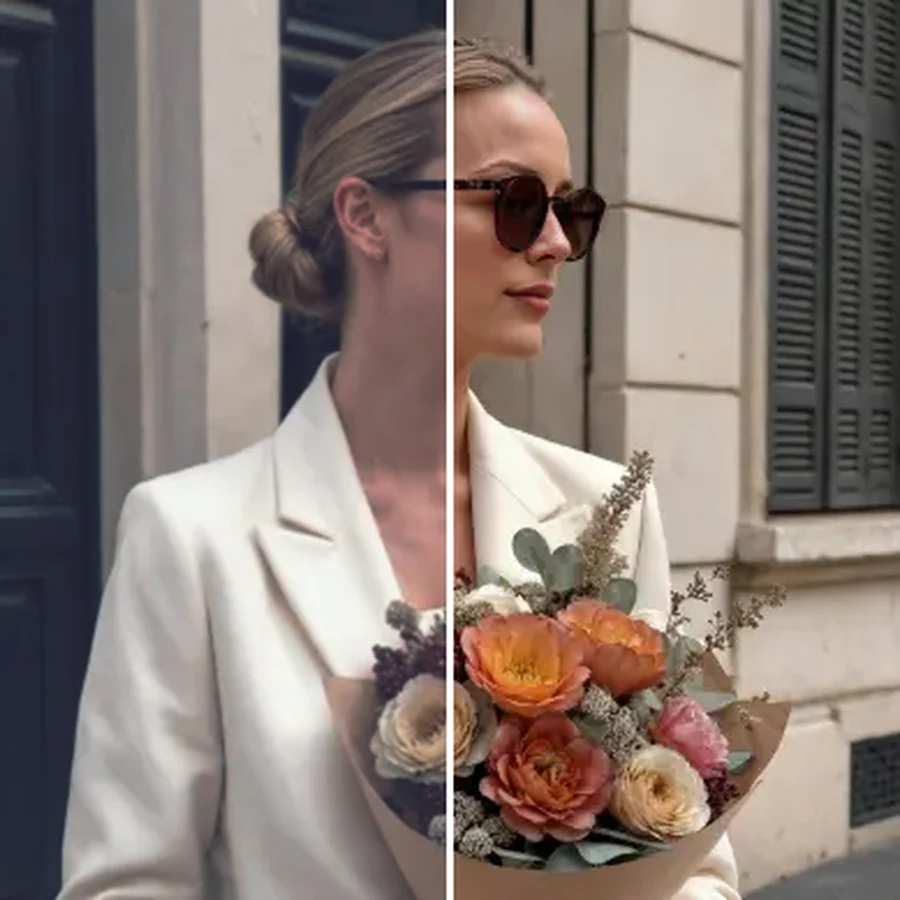
Facelab's AI photo color correction tool gives you full manual control over exposure, brightness, contrast, highlights, shadows, temperature, tint, vibrance, saturation, clarity, fade, and more, all from 17 precise dials in your browser. Not sure where to start? Auto correction reads your photo and sets a balanced baseline in one tap, then you fine-tune from there. No software to install, no Photoshop skills needed.
Drop your photo here
JPG, PNG, WEBP
Explore more Facelab tools
AI Make Up Editor
Apply virtual lipstick, eyeshadow, and blush instantly.
Open Tool →AI Hairstyle
Try any hairstyle and color — from subtle to bold.
Open Tool →Object Remover
Erase unwanted objects from photos with AI precision.
Open Tool →Background Remover
Remove any background in seconds with AI precision.
Open Tool →Watermark Remover
Erase watermarks and logos from any image instantly.
Open Tool →AI Teeth Whitening
Brighten your smile with realistic whitening in one tap.
Open Tool →Eye Color AI Editor
Change eye color naturally — any shade, any photo.
Open Tool →Image Upscaler
Enlarge photos up to 4× without losing quality.
Open Tool →Body Editor
Slim, reshape, or adjust body proportions with AI tools.
Open Tool →Skin Retouch
Smooth skin, reduce blemishes, perfect your complexion.
Open Tool →Face Shape Editor
Subtly reshape facial features with natural precision.
Open Tool →Resizing Image
Resize photos to any size without quality loss.
Open Tool →Instagram AI Photo Editor
Edit photos for Instagram with one tap AI presets.
Open Tool →Sky Replacement
Swap a dull sky for a sunset, clouds or stars.
Open Tool →Background Blur
Blur the background like a portrait lens, or add bokeh.
Open Tool →Light Effects
Add light leaks, flares and a warm glow.
Open Tool →Photo Textures
Lay film grain, dust or paper over any photo.
Open Tool →Photo Color Correction
Fix exposure, color and tone with 17 dials.
Open Tool →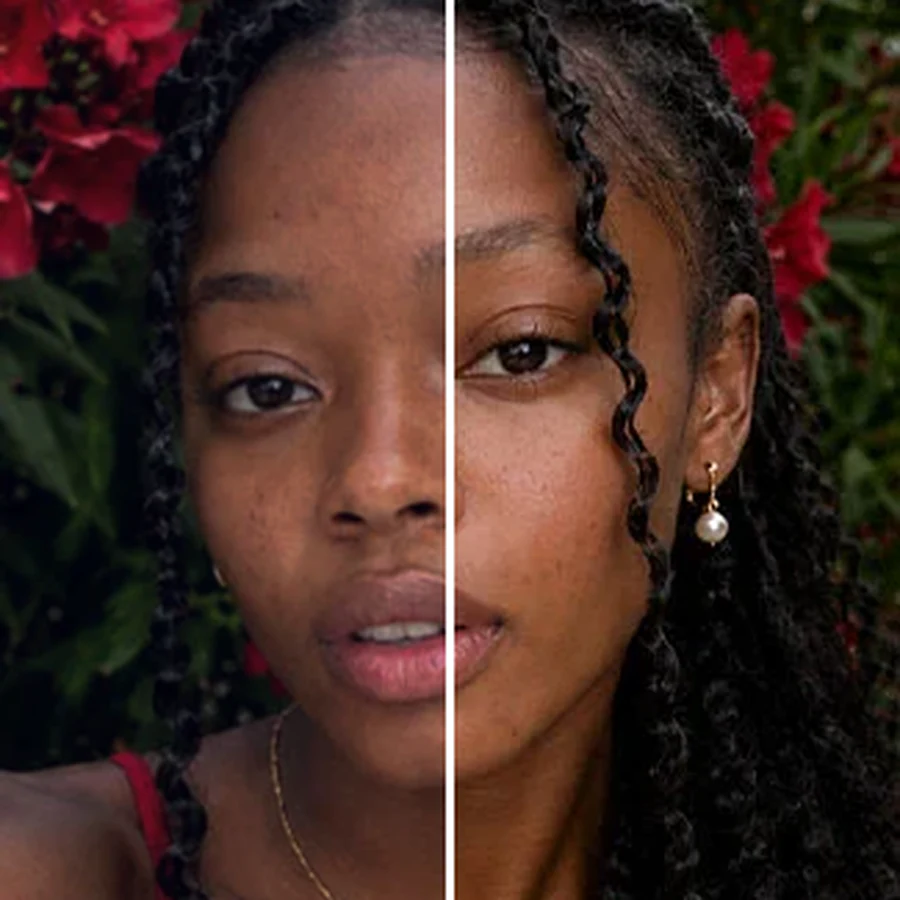
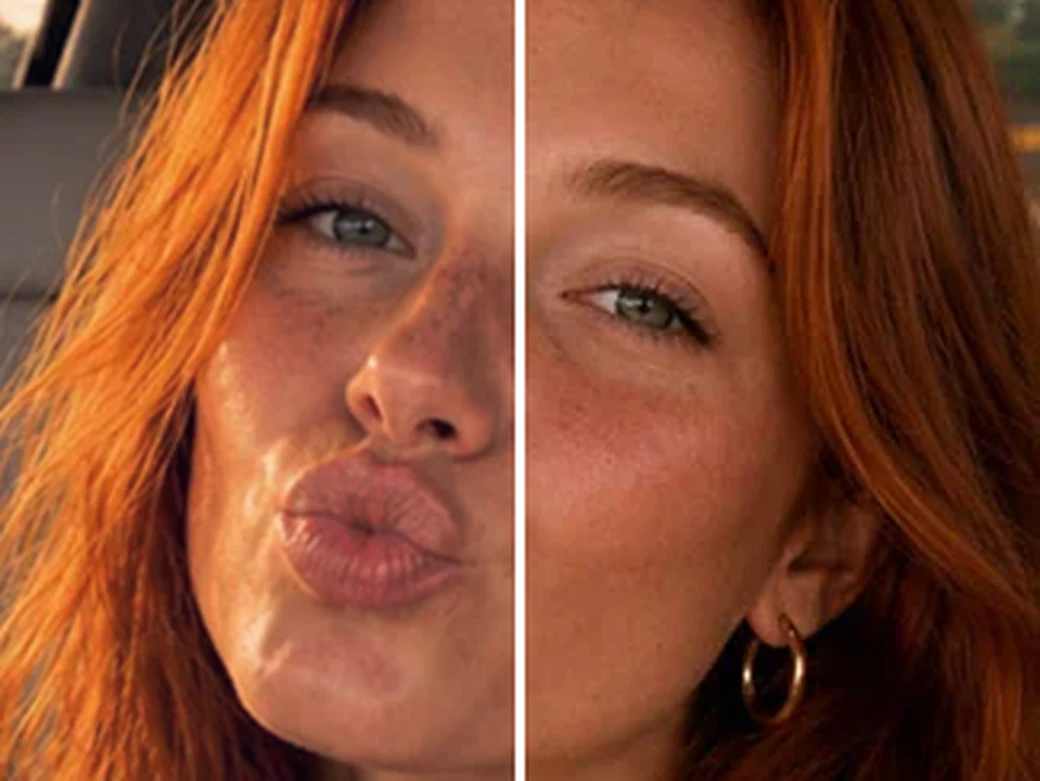
Fix Underexposed or Overexposed Photos
Shot in bad light? Pull back blown-out highlights, lift crushed shadows, and rebalance exposure and contrast in seconds. Facelab's photo color correction tool recovers detail that looks lost, without the harsh, flat look of a basic brightness slider.
Fix White Balance and Correct Color Casts
Yellow indoor lighting, blue shade, or a greenish cast from fluorescent bulbs can throw off an otherwise great photo. Adjust temperature and tint to neutralize the cast and restore true-to-life color, or let auto correction read the scene and set a natural white balance for you.
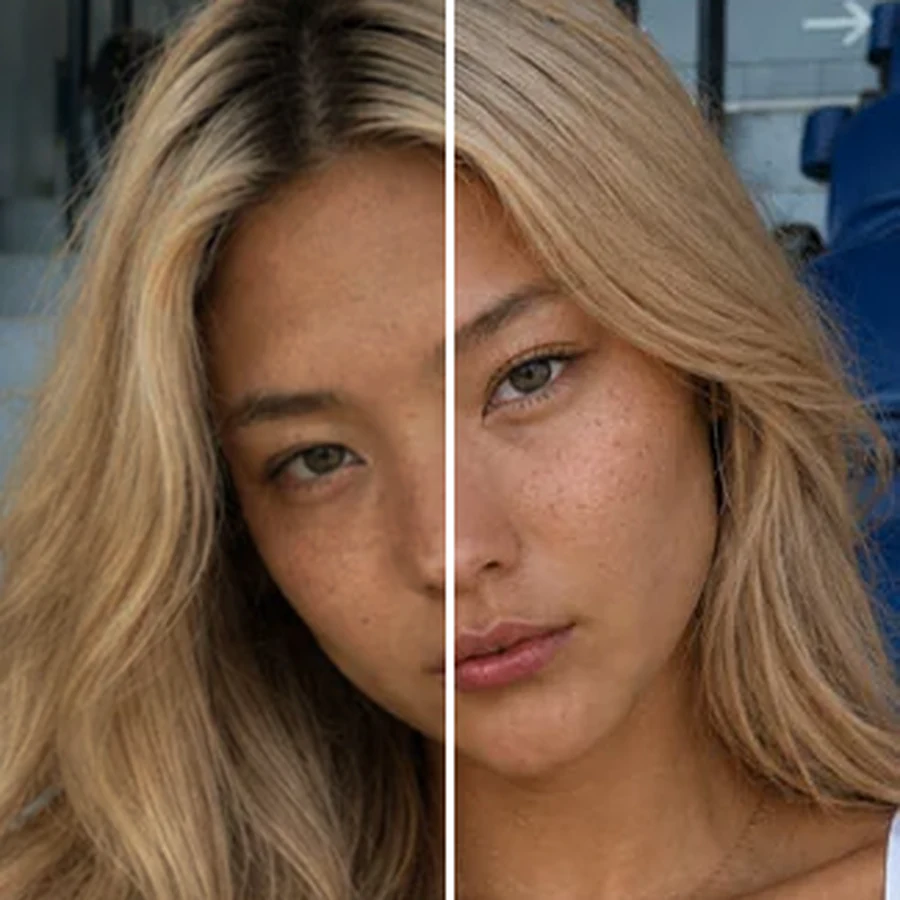
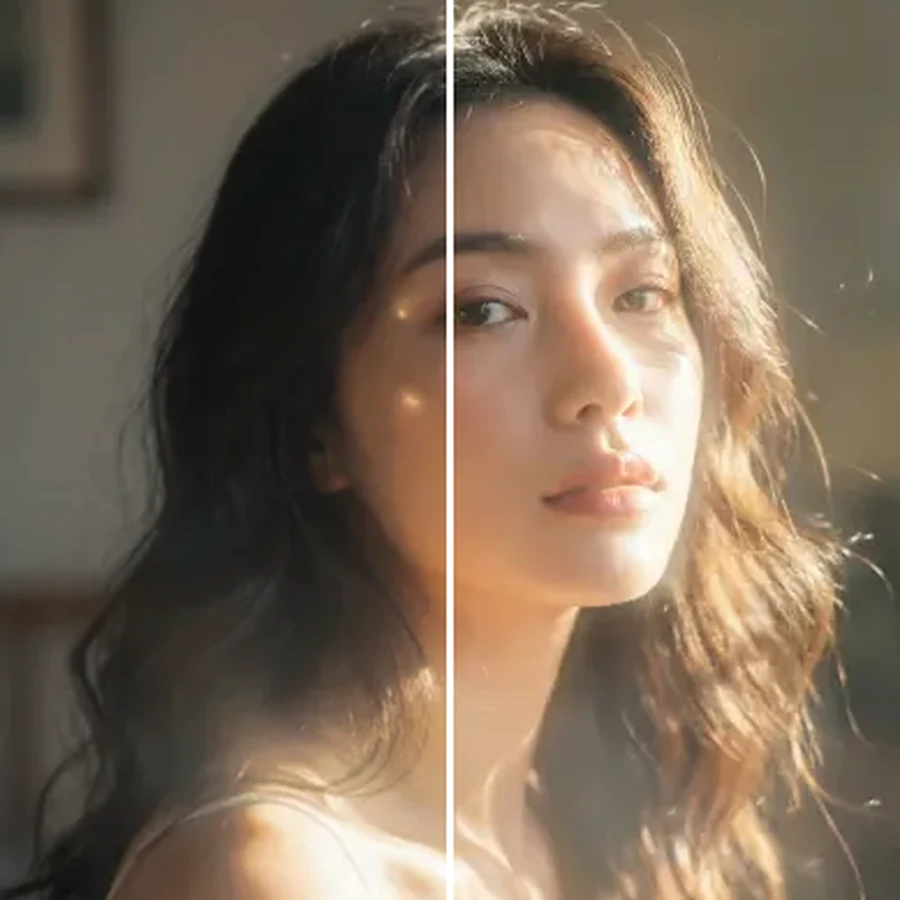
Boost Color Without Overdoing It
Vibrance and saturation controls make colors pop while protecting skin tones from turning orange or plastic. Add clarity for crisp midtone contrast, or dial in fade for a soft, muted, film-like look. Every effect is adjustable, so you stay in control of the final result.
Get Consistent Color Across a Whole Photo Set
Batch of product shots or a photo dump from different cameras? Save time by applying the same adjustment style across every image, or use auto correction as a fast first pass so your whole set matches before you fine-tune the details.
What our users say
“I used to spend 20 minutes editing photos by hand. Now it takes 5 seconds. The results look more polished too.”
“Perfect for my e-commerce store. My listings look so much more professional now, and it's instant.”
“I tried every free tool out there. Facelab handles edge cases (hair, fine details) better than anything else.”
“I shoot products on my kitchen table. Facelab makes them look like a proper studio shot every time.”
“Used to outsource at $5 a photo. Now it's instant and free. The quality is identical: clients can't tell.”
“I edit photos for marketing assets in minutes. It completely changed how fast I can ship creative.”


Do more with the Facelab app
Get 25+ AI-powered editing tools, filters, and creative effects, free on iOS and Android.


Facelab Photo Color Correction: Frequently Asked Questions
Learn how to correct exposure, white balance, and color online with Facelab. Read our FAQ to see how our 17 tuning dials, paired with auto correction, give you full control over the final result, no complex software needed.
What does the AI photo color correction tool actually adjust?
Facelab's Adjust tool gives you 17 tone and color dials, including exposure, brightness, contrast, highlights, shadows, temperature, tint, vibrance, saturation, clarity, and fade, plus more. Move a single dial or combine several for full creative control, right in your browser.
How does auto correction work?
Auto correction analyzes your photo's exposure, color balance, and contrast, then sets every dial to a natural, balanced starting point in one tap. You can accept the result as is or keep adjusting any dial by hand afterward.
Can I fix white balance and remove a color cast?
Yes. Use the temperature and tint dials to correct yellow, blue, or green color casts caused by mixed lighting, and restore accurate, true-to-life color without editing software.
Will color correction make skin tones look unnatural?
No. Vibrance boosts weaker colors while protecting already-saturated tones like skin, so faces stay natural even when you push the dial. Saturation gives you a stronger, uniform boost across every color if you want a bolder look instead.
Do I need Photoshop or design experience to use this tool?
Not at all. Every dial in Facelab's photo color correction tool is a simple slider you drag in your browser. There is nothing to install and no steep learning curve, whether you use auto correction or adjust every setting by hand.
Is online photo color correction free to use?
Yes, you can correct color, exposure, and tone for free directly in your browser. Save your result, or open it in the Facelab editor to keep refining with the rest of our AI-powered tools.
Try Facelab Now!
Virtual makeup, skin retouching, and AI enhancement, free to try right now.
Free to download · No commitment required